 Excellent PLC


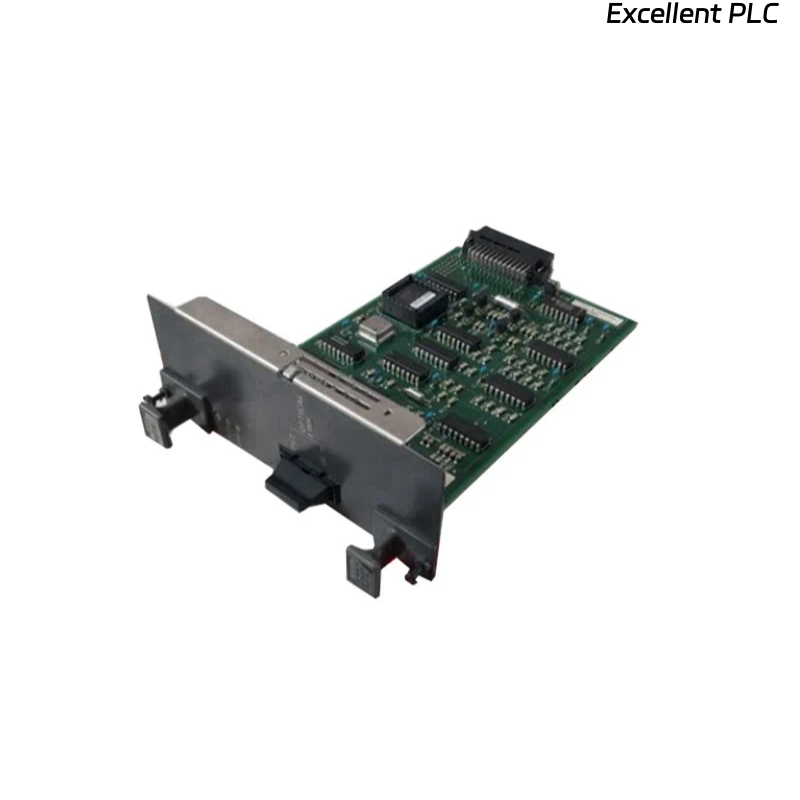
1. Background and Function
The Yokogawa AIP851 desktop display unit is part of the CENTUM or STARDOM system architecture.
It serves as a local operator interface, providing real-time process data, alarms, and diagnostics.
When the screen does not display (black or blank screen), the root cause is often related to power, internal board communication, or backlight failure.
This guide provides a structured approach to locate and fix the fault safely.
2. Safety Precautions
-
Always power off the unit before opening the housing.
-
Disconnect AC/DC supply and discharge internal capacitors.
-
Use an ESD wrist strap to prevent static damage.
-
Do not touch the display board while the system is powered.
3. Step 1 — Visual and Environmental Inspection
Start with the basics:
-
Confirm that the main power indicator on the rear or side panel is on.
-
Check for burnt smell, loose connectors, or abnormal heat around the power section.
-
Verify the ambient temperature is within Yokogawa’s specified range (0–50 °C).
-
Ensure that the ventilation openings are not blocked by dust.
If the power indicator is off, continue with Step 2.
If it’s on but the display is blank, move to Step 3.
4. Step 2 — Power Supply Verification
-
Measure input voltage using a multimeter.
-
For AC models: check 100–240 V AC input.
-
For DC models: confirm 24 V DC (±10%) is stable.
-
-
Inspect the internal power supply board fuses and connectors.
-
Look for bulging capacitors or darkened resistors.
-
If no output voltage is present, replace the power supply board.
5. Step 3 — Display and Backlight Inspection
Even if the logic board is working, a failed backlight can make the screen appear dead.
-
Power on the unit in a dark environment.
-
If you see a faint image when shining a flashlight on the screen, the backlight or inverter is faulty.
-
-
Inspect the backlight inverter board for burnt components or discolored connectors.
-
If available, test the LCD module with another working unit.
Recommended fix: Replace the backlight inverter or LCD module as per Yokogawa part reference.
6. Step 4 — Logic and Communication Board Check
If the screen and power are fine but no data is displayed:
-
Confirm that communication cables (Ethernet or serial) are properly seated.
-
Check link LEDs on network ports.
-
Replace the communication cable temporarily with a known-good one.
-
If there’s still no response, the main logic board may have failed.
Perform board-level diagnostics if you have access to Yokogawa service tools; otherwise, replace the logic board.
7. Step 5 — Firmware and Configuration
-
Ensure the firmware version of AIP851 matches the control system it connects to.
-
Reload configuration or HMI project files via maintenance PC if available.
-
Corrupted firmware or missing configuration can cause a blank display even when hardware is normal.
8. Step 6 — Replacement and System Verification
If previous checks fail to restore function:
-
Replace the AIP851 with a verified spare.
-
Reconnect network and power.
-
Observe display startup sequence; all LEDs should blink briefly before normal screen load.
-
Verify data updates from the control system and operator interaction response.
9. Maintenance Tips
-
Maintain clean air flow around the unit to prevent overheating.
-
Avoid frequent power cycling, which stresses the backlight and inverter.
-
Schedule firmware updates during planned downtime only.
-
Keep backup configurations on a maintenance laptop.
-
Regularly check for signs of capacitor aging on the power board (at least once a year).
Technical Insight
Most non-display issues in Yokogawa AIP851 are traced to one of the following:
-
Power supply instability or board failure
-
Backlight inverter or LCD damage
-
Faulty logic board or firmware corruption
Systematic diagnosis and preventive maintenance significantly reduce recurrence and extend service life of the display unit.