 Excellent PLC


🌐 Overview
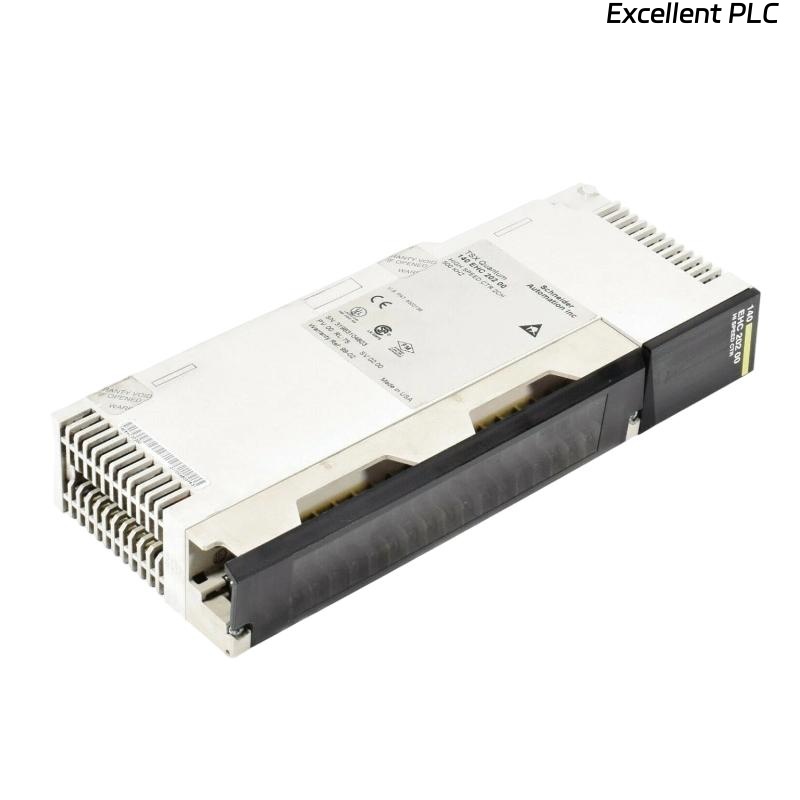
The Schneider 140NOE21110C is an Ethernet TCP/IP communication module for Modicon Quantum PLCs, designed to provide reliable and high-speed data exchange with SCADA systems, HMIs, and engineering workstations.
If you’re installing this module for the first time or replacing an existing one, this guide covers everything you need to know — from physical setup to network testing.
⚙️ 1. What the 140NOE21110C Does
| Feature | Description |
|---|---|
| Communication Protocols | Modbus TCP/IP, Ethernet IP, Global Data |
| Speed | 10/100 Mbps auto-negotiation |
| IP Configuration | Static or DHCP |
| Mounting Type | Quantum rack slot |
| Power Source | From PLC backplane (5 V DC) |
| Indicators | RUN, ERR, ACT, LINK LEDs |
This module acts as the bridge between the Quantum controller and external Ethernet networks, allowing remote programming, diagnostics, and data exchange.
🧰 2. Before You Start
Tools & Equipment:
-
Flat-head screwdriver (small)
-
ESD wrist strap
-
Shielded CAT5e/CAT6 Ethernet cable
-
Verified network switch or hub
-
EcoStruxure Control Expert or Concept software
⚠️ Safety Reminder: Always power down the Quantum rack before inserting or removing communication modules.
🔧 3. Physical Installation
Step 1: Power Down the System
Completely shut off power to the PLC rack and all connected equipment. Wait at least 10 seconds to ensure the capacitors discharge.
Step 2: Insert the Module
-
Locate the correct slot on the Quantum rack.
-
Align the 140NOE21110C module’s edge connector with the backplane guide.
-
Slide it in evenly until it clicks into place.
-
Tighten the front retaining screw to secure it.
🧠 Engineer’s Tip: Avoid twisting force when inserting the module — misaligned pins can cause backplane bus failure.
Step 3: Connect Network Cable
Plug one end of the Ethernet cable into the RJ-45 port on the module and the other into your network switch or HMI device.
Use shielded cables if the PLC is located in a noisy electrical environment (near VFDs, large motors, or power lines).
💡 4. LED Indicators — Quick Reference
| LED | Color | Status | Meaning |
|---|---|---|---|
| RUN | Green | ON | Module initialized |
| ERR | Red | OFF | Normal |
| ERR | Red | ON | Hardware or config fault |
| LINK | Green | ON | Ethernet link detected |
| ACT | Yellow | Flashing | Data transmission active |
If only the ERR LED remains ON after startup, recheck network parameters and ensure IP configuration matches your PLC project.
🖥️ 5. Configuring in Software
Using EcoStruxure Control Expert:
-
Open your PLC project.
-
In the rack configuration, select the slot where 140NOE21110C is installed.
-
Add the module from the hardware catalog.
-
Under Ethernet Settings, set:
-
IP Address (e.g., 192.168.1.10)
-
Subnet Mask (e.g., 255.255.255.0)
-
Gateway (if applicable)
-
-
Download the configuration to the controller.
-
Ping the module from your engineering PC to confirm communication.
🧩 Pro Tip: Assign a static IP whenever possible — DHCP can cause delays in reconnection after power cycles.
🧮 6. Network Testing
After configuration:
-
Ping from PC → module (
ping 192.168.1.10) -
Observe LINK and ACT LEDs for continuous activity
-
Open Control Expert → Communication Diagnostics to verify Modbus TCP traffic
If ping fails:
-
Check cable type and switch port configuration
-
Ensure the module is in the same subnet as your PC
-
Try disabling PC firewall temporarily to test connectivity
🧰 7. Common Installation Mistakes
| Problem | Root Cause | Fix |
|---|---|---|
| ERR LED stays on | Incorrect IP/subnet | Reconfigure IP |
| No LINK light | Bad cable or wrong port | Replace or re-seat cable |
| Slow response | Mixed 10/100 Mbps devices | Force all to 100 Mbps full-duplex |
| Unreachable from software | DHCP misassignment | Use static IP |
| Frequent disconnections | EMI interference | Use shielded CAT6 cable and proper grounding |
🧾 8. Maintenance Recommendations
-
Clean the Ethernet port contacts annually with compressed air.
-
Check cable tension — loose RJ-45 connectors can cause intermittent signal loss.
-
Use industrial-grade switches with surge protection.
-
Always label network cables clearly during commissioning.
🧠 “In industrial Ethernet, 80% of communication faults come from the physical layer — not the software.”
🏁 9. Final Verification Checklist
✅ Module securely inserted into rack
✅ Correct IP and subnet configured
✅ LINK and ACT LEDs active
✅ PLC reachable from engineering PC
✅ No ERR or fault indicators
Once confirmed, your Schneider 140NOE21110C Ethernet module is fully operational.
🧩 Engineer’s Final Note
The 140NOE21110C remains one of the most widely used Ethernet modules in Quantum systems for a reason —
it’s reliable, simple to configure, and offers stable Modbus TCP performance for industrial environments.
💬 “A well-installed NOE module is invisible — it just works, day after day.”