 Excellent PLC


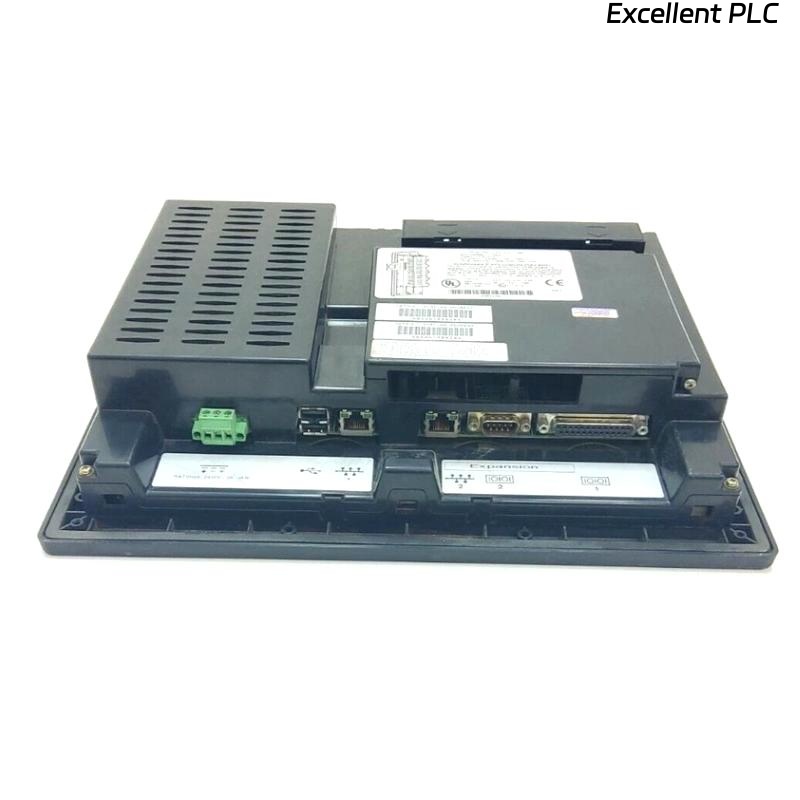
The GE IC754VGL12CTD is a 12-inch HMI terminal widely used in Mark VIe and IC600 series PLC systems. Experiencing a partial black screen can be alarming, as it affects operator visibility and control.
Initial Observation
During a recent site visit, the HMI powered up, but the top-right portion of the screen remained black, while other areas displayed correctly. No error LEDs were present.
Field experience shows that partial black screens are often caused by LCD backlight failure, loose ribbon connectors, or software rendering issues rather than total module failure.
Physical Inspection
-
Remove the HMI from its panel carefully.
-
Open the rear cover following ESD precautions.
-
Inspect the LCD ribbon cable connections. In this case, one connector was slightly loose, causing intermittent contact for a section of the display.
-
Check for any signs of burn marks or liquid ingress, which can cause partial display failures.
Troubleshooting Steps
-
Reseat the ribbon connectors firmly, ensuring all pins are aligned.
-
Power cycle the HMI after reconnecting. Often, the display initializes fully once connections are secure.
-
If the screen still shows black areas, test the backlight with a flashlight: areas that respond to light may indicate backlight failure.
-
For persistent issues, replace the LCD panel or HMI module, especially in critical systems where downtime cannot be tolerated.
Software Check
-
Ensure the HMI firmware is up-to-date. Some partial screen issues are caused by graphics driver mismatches or corrupted projects.
-
Download a simple test screen from Workbench to verify whether the issue is hardware or software related.
Field insight: Partial black screens usually point to physical connection or backlight problems. Software is less often the root cause.
References:
-
GE Digital. IC754VGL12CTD Operator Interface Terminal Manual, 2018.
-
GE Digital. Mark VIe HMI Troubleshooting Guide, 2019.