 Excellent PLC


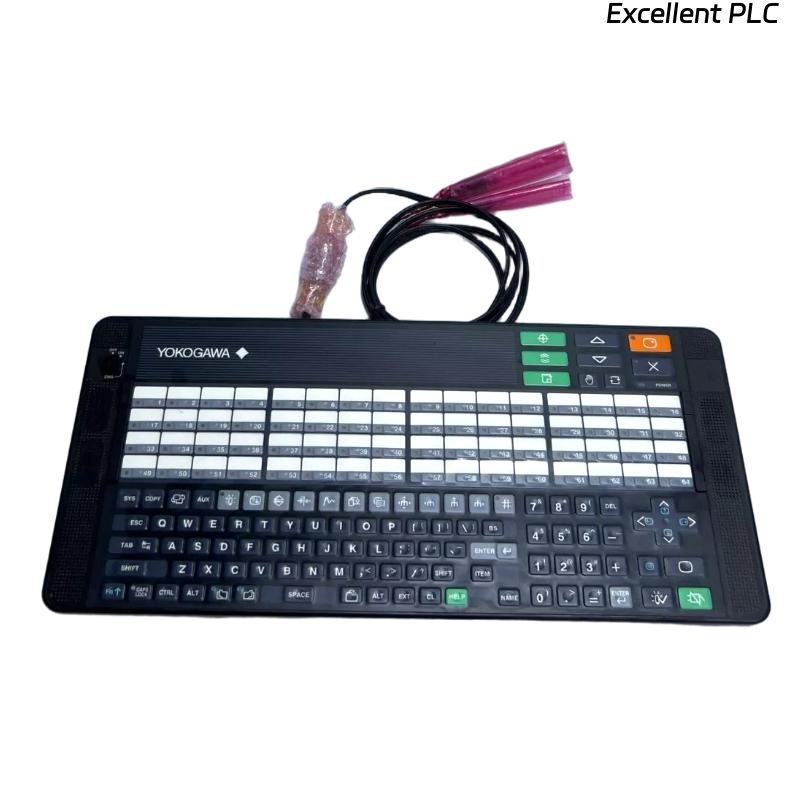
The Yokogawa AIP831 Operation Keyboard is a specialized industrial operator keyboard designed for Yokogawa CENTUM VP Human Interface Stations (HIS). Unlike standard operation keyboards, the AIP831 supports simultaneous operation of up to eight control loops through dedicated loop control sections equipped with touch sensors. The keyboard also incorporates an integrated USB speaker for alarm notification and connects to the HIS through two independent USB interfaces. Reliable operation of both USB interfaces, touch sensors, and dedicated function keys is essential for efficient process monitoring and control. This troubleshooting guide provides a systematic procedure for diagnosing and correcting hardware, communication, software, and operational faults.
Contents
- 1. Understanding Keyboard Failures
- 2. Common Failure Symptoms
- 3. Typical Causes of Malfunctions
- 4. Initial Hardware Inspection
- 5. USB Communication Verification
- 6. Touch Sensor Inspection
- 7. Software and License Verification
- 8. Diagnostic Analysis
- 9. Recommended Troubleshooting Workflow
- 10. Corrective Actions
- 11. Functional Recovery Verification
- 12. Preventive Maintenance
- 13. Real Industrial Maintenance Case
- 14. Frequently Asked Questions
Understanding Keyboard Failures
The AIP831 depends on stable USB communication, properly functioning touch sensors, and the correct CENTUM VP software configuration. Most operational problems result from disconnected USB cables, insufficient USB power, damaged connectors, disabled software licenses, contaminated touch sensor surfaces, or workstation configuration errors rather than internal hardware defects.
Common Failure Symptoms
- The keyboard is not recognized by the Human Interface Station.
- Only part of the keyboard functions correctly.
- Eight-loop simultaneous operation is unavailable.
- Touch sensors fail to respond.
- The integrated USB speaker produces no alarm sound.
- Loop selection keys operate intermittently.
- Alarm acknowledgement keys fail.
- The keyboard disconnects unexpectedly during operation.
Typical Causes of Malfunctions
- One or both USB cables are disconnected.
- Damaged USB connectors or cables.
- Insufficient USB power from the workstation.
- Missing or invalid Eight-loop Operation software license.
- Contaminated touch sensor surfaces.
- Incorrect HIS configuration.
- USB driver or operating system communication issues.
- Internal keyboard electronics failure.
Initial Hardware Inspection
- Verify the AIP831 model number.
- Inspect the keyboard enclosure for physical damage.
- Check both USB cables for wear or damage.
- Inspect USB connectors for bent contacts.
- Clean the touch sensor areas.
USB Communication Verification
- Confirm that both USB cables are connected directly to the workstation.
- Avoid passive USB hubs whenever possible.
- Verify that both USB devices are detected by the operating system.
- Reconnect USB cables if communication is unstable.
- Restart the Human Interface Station after reconnecting the keyboard.
Touch Sensor Inspection
- Clean the touch sensor surfaces using approved cleaning materials.
- Verify Instrument Faceplate Highlight responds correctly.
- Inspect for physical damage around touch sensor areas.
- Confirm operator gloves do not interfere with touch operation if applicable.
- Test each loop selection area individually.
Software and License Verification
- Verify the Standard Operation and Monitoring Function is installed.
- Confirm the Eight-loop Simultaneous Operation software license is active.
- Verify keyboard detection within the HIS.
- Confirm touch sensor functions are enabled.
- Review workstation diagnostic logs for USB or keyboard errors.
Diagnostic Analysis
| Observed Condition | Possible Diagnosis |
|---|---|
| Keyboard not detected | USB communication failure or disconnected cable |
| Speaker inactive | Second USB connection missing or USB audio issue |
| Touch sensors fail | Contaminated sensor surface or software configuration problem |
| Eight-loop operation unavailable | Required software package not installed or licensed |
| Intermittent operation | Loose USB connector or damaged cable |
Recommended Troubleshooting Workflow
VERIFY BOTH USB CONNECTIONS
CHECK OPERATING SYSTEM DEVICE DETECTION
VERIFY SOFTWARE LICENSE
INSPECT TOUCH SENSORS
TEST LOOP CONTROL KEYS
VERIFY USB SPEAKER
CHECK HIS CONFIGURATION
IMPLEMENT CORRECTIVE ACTION
VERIFY FULL OPERATION
MONITOR SYSTEM STABILITY
Corrective Actions
- Reconnect both USB cables securely.
- Replace damaged USB cables or connectors.
- Clean touch sensor surfaces.
- Activate or reinstall the Eight-loop Operation software package if necessary.
- Correct HIS configuration settings.
- Replace the AIP831 if internal hardware failure is confirmed.
Functional Recovery Verification
- Verify detection of both USB devices.
- Confirm operation of all eight loop control sections.
- Test every touch sensor.
- Verify Instrument Faceplate Highlight functionality.
- Confirm USB speaker alarm output.
- Verify stable operation during extended system use.
Preventive Maintenance
- Clean the keyboard and touch sensor surfaces regularly.
- Inspect USB cables for mechanical wear.
- Verify connector integrity during scheduled maintenance.
- Keep USB ports clean and free of contamination.
- Test speaker and touch sensor functionality periodically.
- Confirm software licenses remain valid after system upgrades.
Real Industrial Maintenance Case
During operation at a large petrochemical complex, operators reported that the AIP831 no longer supported eight-loop simultaneous operation and the integrated alarm speaker had stopped functioning.
Maintenance personnel discovered that one of the two USB cables had become disconnected during workstation servicing.
After reconnecting the second USB cable and verifying the software license:
- All eight loop control sections operated normally.
- Touch sensor response returned immediately.
- The integrated USB speaker resumed alarm notification.
- The workstation remained stable throughout continuous plant operation.
Frequently Asked Questions
Why is eight-loop simultaneous operation unavailable?
The most common causes are a missing Eight-loop Simultaneous Operation software license, incomplete USB connections, disabled software configuration, or communication failures between the keyboard and the Human Interface Station.
Why does the integrated USB speaker not produce alarm sounds?
The second USB connection may be disconnected, USB audio may not be recognized by the operating system, or workstation audio configuration may require verification.
When should the AIP831 be replaced?
The keyboard should be replaced only after confirming that both USB interfaces, software licensing, touch sensors, workstation configuration, and communication hardware are functioning correctly and an internal hardware fault has been verified.
Summary
Effective troubleshooting of the Yokogawa AIP831 Operation Keyboard requires systematic inspection of both USB communication interfaces, touch sensors, software licensing, workstation configuration, and dedicated loop control functions. Routine preventive maintenance, connector inspection, and software verification help ensure reliable eight-loop simultaneous operation and dependable performance within Yokogawa CENTUM VP Human Interface Stations.