 Excellent PLC


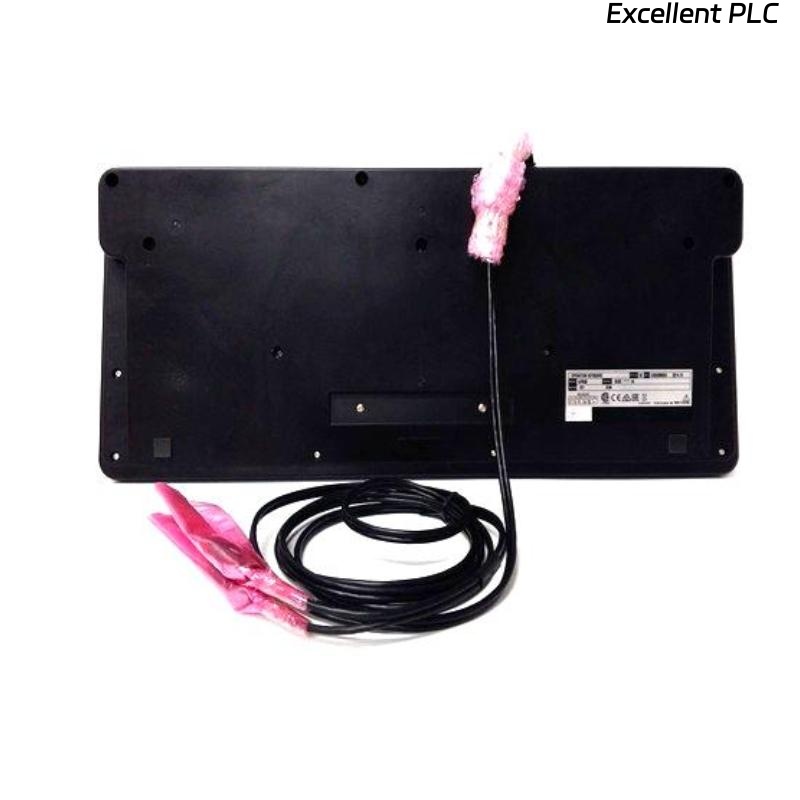
The Yokogawa AIP830 Single-Operator Keyboard is a dedicated industrial operator interface designed for Yokogawa CENTUM VP and CENTUM CS Human Interface Stations (HIS). It provides dedicated process control keys, alarm acknowledgement buttons, display navigation controls, function keys, and a numeric keypad that enable efficient plant monitoring and operation. Reliable keyboard performance is essential for operator productivity and process safety. Failures of the AIP830 may prevent alarm acknowledgement, process navigation, or command entry. A structured troubleshooting procedure allows maintenance engineers to quickly identify the root cause and restore normal keyboard functionality.
Contents
- 1. Understanding Keyboard Failures
- 2. Common Failure Symptoms
- 3. Typical Causes of Keyboard Problems
- 4. Initial Hardware Inspection
- 5. Power and Communication Verification
- 6. Communication Interface Inspection
- 7. HIS Configuration Verification
- 8. Diagnostic Analysis
- 9. Recommended Troubleshooting Workflow
- 10. Corrective Actions
- 11. Functional Recovery Verification
- 12. Preventive Maintenance
- 13. Real Industrial Maintenance Case
- 14. Frequently Asked Questions
Understanding Keyboard Failures
The AIP830 communicates directly with the Human Interface Station and provides specialized process control functions that are unavailable on standard PC keyboards. Most operational issues are caused by loose communication cables, connector contamination, worn membrane switches, power interruptions, or incorrect HIS configuration rather than internal electronic failure.
Common Failure Symptoms
- Keyboard is not recognized by the Human Interface Station.
- No response from any keys.
- Individual function keys fail to operate.
- Alarm acknowledgement buttons are unresponsive.
- Intermittent keyboard communication.
- Repeated or delayed keystrokes.
- Display navigation controls do not function correctly.
- Operator login or command entry cannot be completed.
Typical Causes of Keyboard Problems
- Loose communication cable.
- Damaged communication connector.
- Power supply instability.
- Contaminated or worn membrane switches.
- Incorrect HIS keyboard configuration.
- Cable damage from excessive bending.
- Electrostatic discharge affecting communication.
- Internal keyboard electronics failure.
Initial Hardware Inspection
- Inspect the keyboard enclosure for damage.
- Verify communication cable integrity.
- Inspect connectors for bent or oxidized pins.
- Check key movement for sticking or physical wear.
- Ensure all connectors are securely seated.
Power and Communication Verification
- Verify the Human Interface Station power supply.
- Reconnect the keyboard communication cable.
- Inspect cable routing for physical damage.
- Restart the operator workstation.
- Confirm stable keyboard communication after reboot.
Communication Interface Inspection
- Inspect the communication interface for proper operation.
- Clean connectors if contamination is present.
- Verify cable continuity.
- Test with a known-good cable if available.
- Confirm reliable communication between the keyboard and HIS.
HIS Configuration Verification
- Verify keyboard recognition by the operating system.
- Confirm HIS software detects the AIP830.
- Check dedicated function key assignments.
- Verify operator access permissions.
- Review diagnostic logs for keyboard-related events.
Diagnostic Analysis
| Observed Condition | Possible Diagnosis |
|---|---|
| No keyboard response | Disconnected cable, communication failure, or hardware fault |
| Specific keys fail | Membrane switch wear or contamination |
| Intermittent communication | Loose connector or damaged cable |
| Alarm acknowledgement unavailable | Configuration error or dedicated key failure |
| Repeated keystrokes | Mechanical wear or contaminated key assembly |
Recommended Troubleshooting Workflow
VERIFY WORKSTATION POWER
CHECK COMMUNICATION CABLE
INSPECT CONNECTORS
RESTART HUMAN INTERFACE STATION
VERIFY KEYBOARD DETECTION
TEST ALL FUNCTION KEYS
CHECK HIS CONFIGURATION
IMPLEMENT REPAIR
VERIFY NORMAL OPERATION
MONITOR LONG-TERM PERFORMANCE
Corrective Actions
- Reconnect loose communication cables.
- Replace damaged cables or connectors.
- Clean keyboard surfaces and communication connectors.
- Correct HIS keyboard configuration.
- Replace worn membrane key assemblies where applicable.
- Replace the AIP830 if internal electronic failure is confirmed.
Functional Recovery Verification
- Verify all keys respond correctly.
- Confirm alarm acknowledgement operation.
- Test display navigation functions.
- Verify numeric keypad operation.
- Observe stable operation during extended system use.
Preventive Maintenance
- Clean the keyboard regularly using approved cleaning materials.
- Protect the keyboard from liquids and excessive dust.
- Inspect communication cables during preventive maintenance.
- Verify connector integrity.
- Test dedicated function keys periodically.
- Avoid excessive mechanical stress on cables and connectors.
Real Industrial Maintenance Case
During routine operation at a petrochemical facility, operators reported intermittent failures of alarm acknowledgement and display navigation keys on an AIP830 keyboard.
Maintenance personnel found oxidation on the communication connector and contamination beneath several membrane keys.
After cleaning the keyboard, servicing the connector, and reconnecting the communication cable:
- All dedicated function keys operated normally.
- Alarm acknowledgement became immediately responsive.
- Display navigation performance returned to normal.
- The operator console remained stable during continuous plant operation.
Frequently Asked Questions
Why is the AIP830 not recognized by the Human Interface Station?
The most common causes include loose communication cables, damaged connectors, workstation configuration issues, power supply interruptions, or internal keyboard hardware failure.
Why do only some function keys stop working?
Partial key failures are usually caused by membrane switch wear, contamination, mechanical damage, or incorrect software mapping of dedicated functions.
When should the AIP830 be replaced?
The keyboard should be replaced after confirming that communication cables, connectors, workstation configuration, cleaning procedures, and power supplies are functioning correctly and an internal hardware fault has been verified.
Summary
Effective troubleshooting of the Yokogawa AIP830 Single-Operator Keyboard requires systematic inspection of communication interfaces, power supplies, connectors, keyboard hardware, and HIS configuration. Regular preventive maintenance, proper cleaning, and careful cable management ensure dependable operator interaction, rapid alarm response, and reliable long-term operation of Yokogawa CENTUM Human Interface Stations.